How to Create a Courier Integration on TDC Partners
Setting up a courier on TDC Partners is a straightforward process, designed to help you connect your app with Voila and start shipping efficiently. This guide walks you through each step, from account creation to submitting your app for approval.
Last updated 12 months ago

Creating a Courier Integration on TDC Partners
Creating a courier on The Despatch Company involves creating an app on our platform, which we then convert to a courier. Our app creation follows an Oauth 2.0 process (eg. App identifiers in the form of a Client ID, Client Secret, App Redirect URLs etc.).
These are not used once your courier goes live; however, it allows for easier conversion to a courier once your app is completed.

Step 1: Get Started
Begin by visiting the TDC Partners website and creating an account. Once registered, set up your company profile with the relevant information.
Step 2: Create Your App
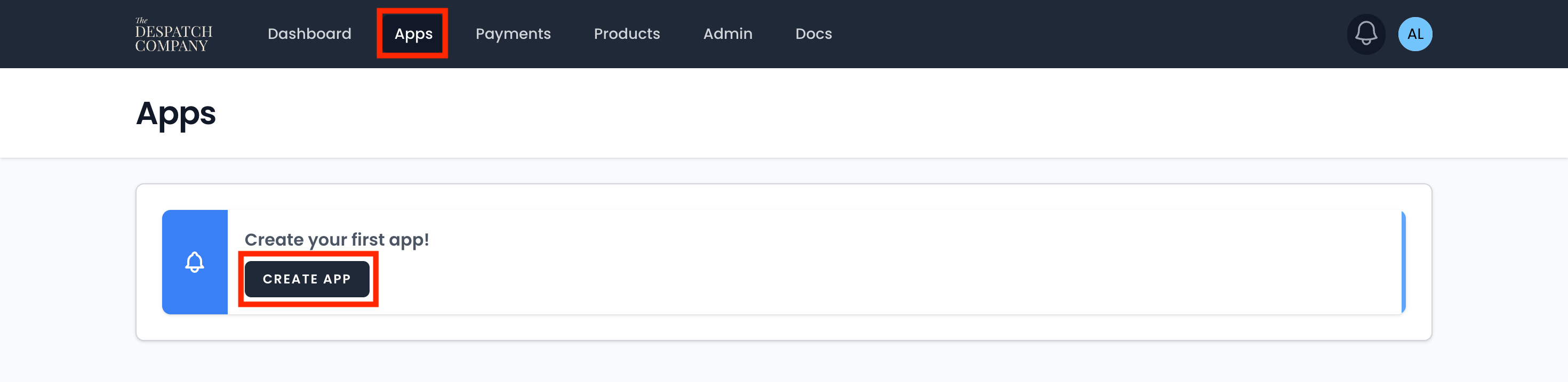
Navigate to the “Apps” section and select “Create a new App”.
Fill out the form with your app’s name, logo, and categories. If you’re building a courier integration, make sure “Voila” is the only product selected under Supported Products.
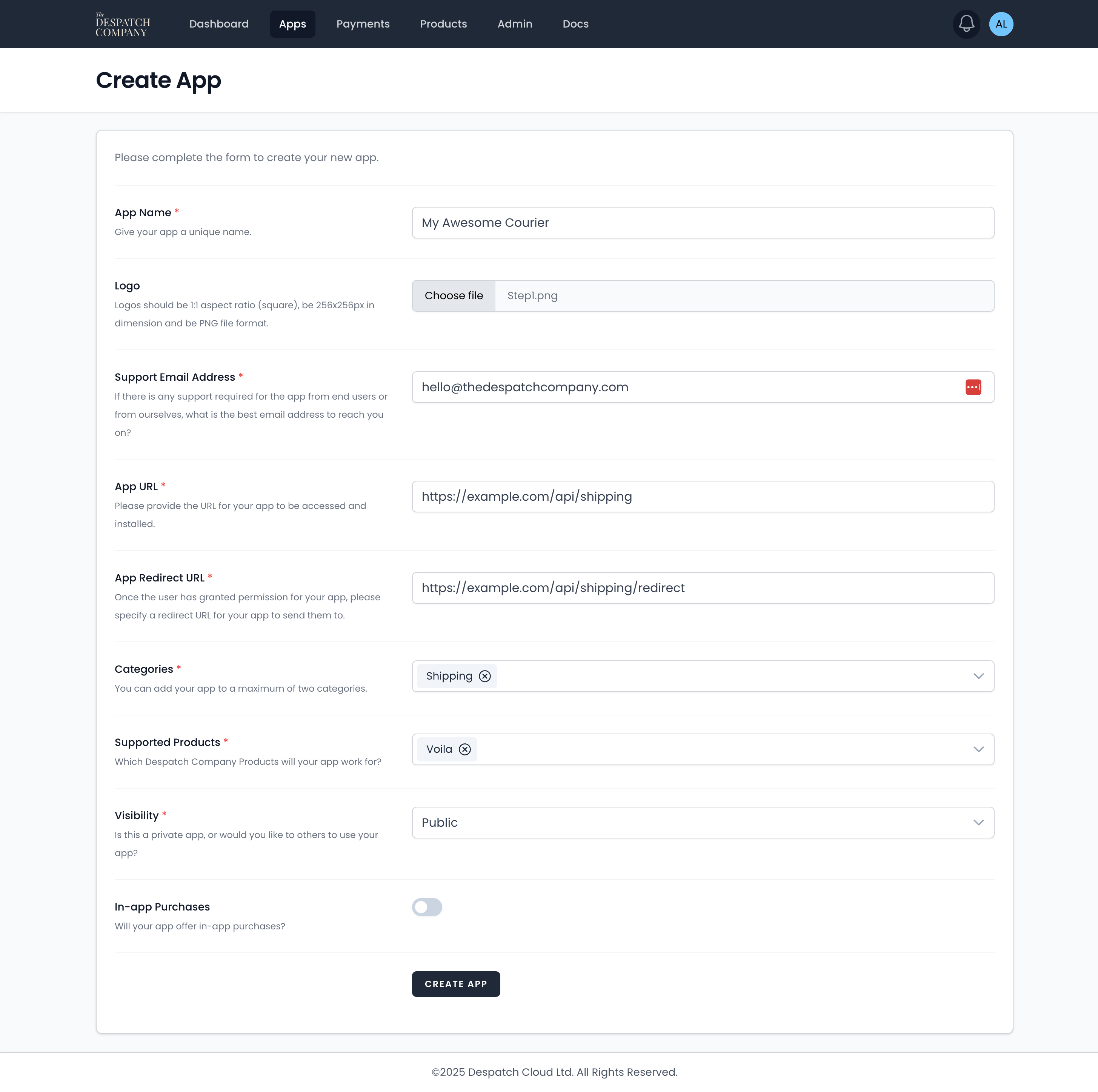
You’ll need to provide your App URL and App Redirect URL. All API endpoints for your courier will be organised under your App URL.
For example, if your App URL is: https://example.com/api/shipping then a request to create a label would be sent to: https://example.com/api/shipping/create-label.
After saving, your app will be assigned a Client ID and Client Secret.

These credentials are used for authentication during development.
Step 3: Install Your App
Refer to the “Install App” section in the TDC Partners App Documentation. During installation, you’ll see a permissions screen allowing you to grant your app access to your Voila account.
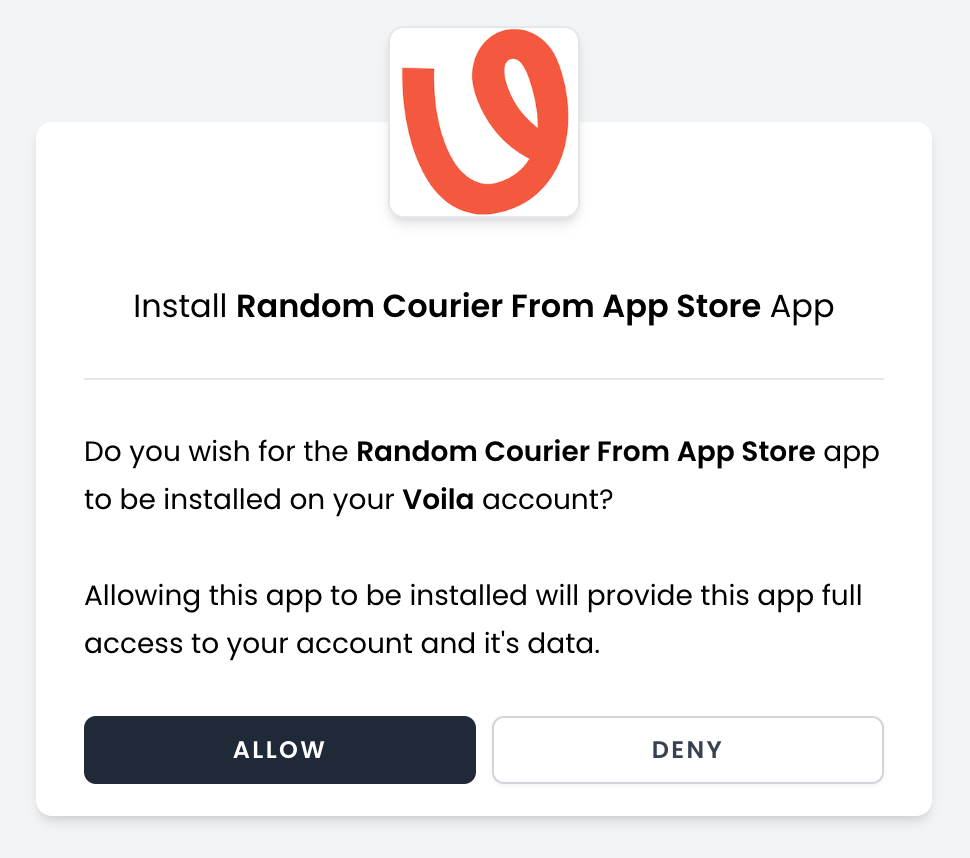
When you click “Allow”, you’ll be redirected to your specified Redirect URL, with several query parameters appended.
For example:
https://example.com/api/shipping/redirect?code={{code}}&grant_type=authorization_code&state={{nonce}}&product=Voila&expires=2025-09-03+15%3A33%3A47&expires_seconds=299&hmac={{hmac}}Your script at the Redirect URL should follow the OAuth 2.0 specification, exchanging the “code” parameter for an access token using the appropriate API endpoint.
Step 4: Develop Your Courier Endpoints
Unlike standard apps, courier integrations are backend-only and don’t require a frontend or Iframe view.
You’ll need to implement the following endpoints:
`GET /register-auth-rules``GET /courier-specifics``GET /format-address-settings``POST /validate-shipment`
`POST /create-label`
Optional endpoints for additional functionality:
`GET /get-services`
`POST /create-collection``POST /cancel-collection``POST /get-pickup-locations``POST /cancel-label`
Example: Register Auth Rules | GET | /register-auth-rules
This endpoint defines the authentication requirements, such as username, password, and account number. The response follows the Laravel Validator format:
An example response for this endpoint would be:
{

"username": "required|string|max:24",

"password": "required|string|max:24",

"accountNumber": "required|integer|min:8|max:8"

}
Example: Courier Specifics | GET | /courier-specifics
The courier specifics are the options specific to the courier. This will commonly include a value for a service code, however, there may be other specific values such as the trade incoterm. Courier specifics are separated between ‘required’ and optional’ values.
An example response for this endpoint would be:
{
  "required": [
    {
      "name": "service_code",
      "type": "string",
      "description": "Example: \"CRL2\""
    }
  ],
  "optional": [
    {
      "name": "safe_place",
      "type": "string",
      "description": "Defaults to \"\""
    },
    {
      "name": "service_enhancement_code",
      "type": "string",
      "description": "Defaults to \"\""
    },
    {
      "name": "terms_of_trade",
      "type": "string",
      "description": "Defaults to \"DAP\". Other values: DDU, DDP, and DAP"
    }
  ]
}
Example: Format Address Settings
The format address settings are the automatic value modifications to the request before they’re sent to the courier to standardise how the data is fed to the courier.
An example response for this endpoint would be:
{
  "isoAndCountry": true,
  "phoneCountryCheck": true,
  "fixPhonePlus": false,
  "fillEmail": "user@example.com",
  "fillName": true,
  "fixUKPostCode": true,
  "removeTabs": true,
  "maxAddressLengthTwo": false,
  "maxAddressLengthThree": 35
}
What Each Rule Does
isoAndCountry: Pairs the country ISO code (e.g. “FR”) with the country name (“France”).
phoneCountryCheck: Checks if the phone number matches the country’s format; if not, a default number is used.
fixPhonePlus: Replaces any “+” at the start of a phone number with “00”.
fillEmail: Supplies a placeholder email if none is provided.
fillName: Uses the company name if no recipient name is given.
fixUKPostCode: Corrects UK postcodes to the proper format.
removeTabs: Removes extra tabs or spaces from address fields.
maxAddressLengthTwo/Three: Sets maximum lengths for address lines.
Example: Validate Shipment | POST | /validate-shipment
The validate shipment settings are anything that is required for producing a shipment with your courier. This will be validating the /create-label request. To get a request schema for the /create-label request, refer to Voila’s API documentation. Like the /register-auth-rules endpoint, this also uses the Laravel Validator facade. An example response for this endpoint would be:
This endpoint validates the data required to create a shipment:
{
  "collection_date": "required|date|after_or_equal:today",
  "courier.posting_location": "required|string",
  "courier.service_level": "required|string",
  "courier.service_format": "required|string",
  "courier.service_code": "required|string",
  "parcels": "required|array",
  "parcels.*.items": "required|array",
  "parcels.*.items.*.value": "required"
}
Example: Create Label | POST | /create-label
The create label request is almost identical to the normal /create-label request schema, with the only differences being the auth is part of the request body, instead of the headers. For example, you’d have an object within your request payload like this:
{
  "username": "JohnDoe",
  "password": "SuperSecret!",
  "accountNumber": "12345678"
}
A successful response might look like:
{
  "type": "PDF",
  "request_id": "12345678",
  "tracking_codes": [
    "DC1234567890123"
  ],
  "tracking_urls": [
    "https://track.despatchcloud.com/tracking/UK3242710288"
  ],
  "dc_request_id": 82435438756,
  "uri": "https://example.com/api/shipping/labels/path-to-label-file.pdf",
  "key": "1756996508fgzex.pdf",
  "reference": "ReferenceFromCreateLabelRequest",
  "label_size": "6x4"
}

Step 5: Submit for Approval
Once your app is ready, fill out the “App Listing” and submit it for approval. A member of the Voila team will contact you using the email address provided in your registration. They’ll request any additional information needed for authentication and test your API.
When your integration passes their checks, your app will be approved and converted into a courier integration for all Voila users.
By following these steps, you’ll create a robust courier integration on TDC Partners, making shipping easier and more efficient for everyone.